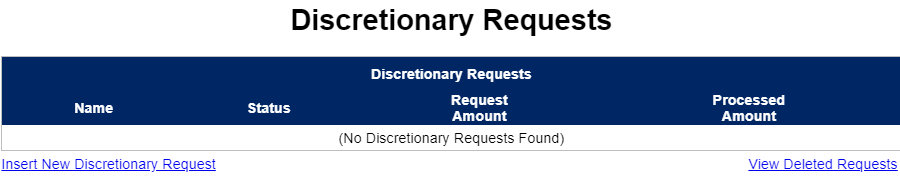
Select the Insert New Discretionary Request link to start the creation of an agency Discretionary Funding Request. The information is very similar to the Work Plan CSBG Community Action Plan (CAP) and Budget sections.
Header: Enter the Name of the request. Enter the estimated CSBG funding Amount. The Processed Amount will be entered by DCED if the request is processed.
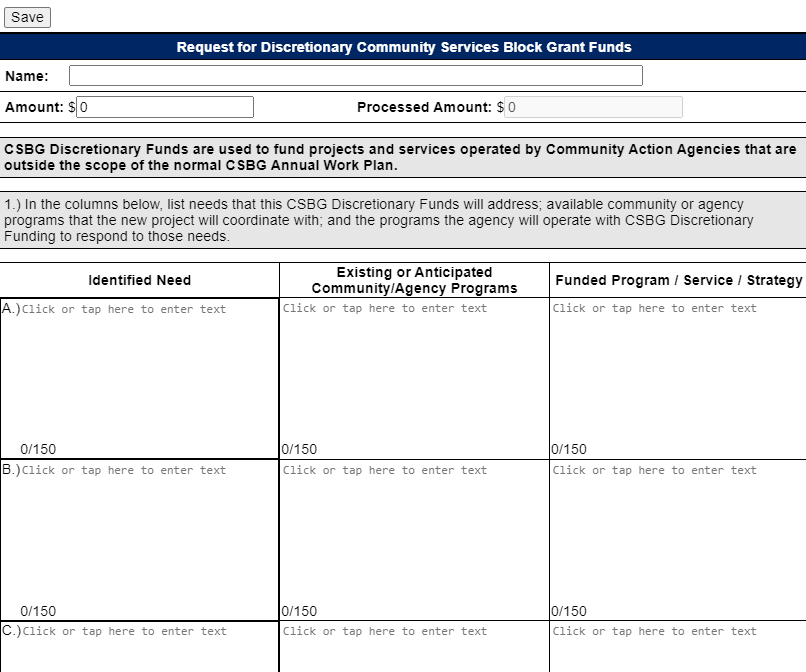
Section 1: Information must be entered in at least row A and in each block in the row. If not entered, an error message and/or a block outlined in red will display after a COPOS user selects the Save button. The Work Plan may be saved with errors. All errors must be corrected prior to submission to DCED.
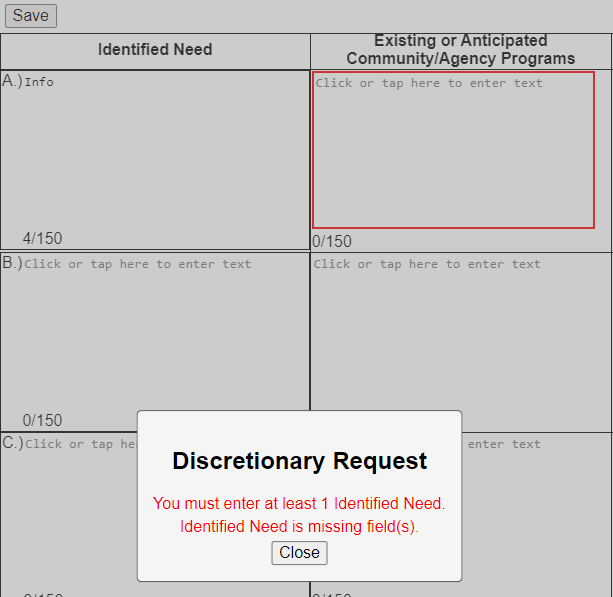
COPOS allows for up to seven needs rows to be entered. If an agency has more than 7 needs, consider combining needs which are closely related into a single need with 2 parts.
If an agency has one need with many different programs and services, it is feasible to enter the same need in two rows while being sure to provide full information for each row (Need, Programs, and Funded Programs, Service, and Strategy).
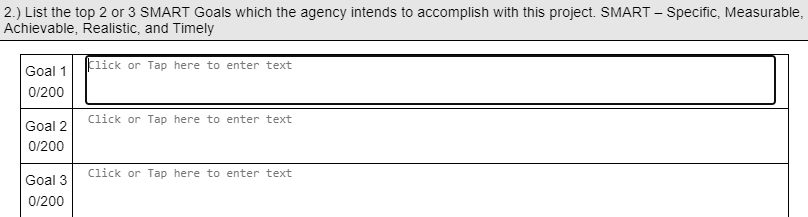
Section 2: In 200 characters or less, enter two or three agency goals that are Specific, Measurable, Achievable, Realistic, and Timely (SMART). The agency may have one to three goals for each discretionary request. An error message will display when the Save button is selected and at least one goal does not have information. If the agency has more than 3 (three) goals, the additional goals will need to be entered under the other questions or combined within these 3 (three).
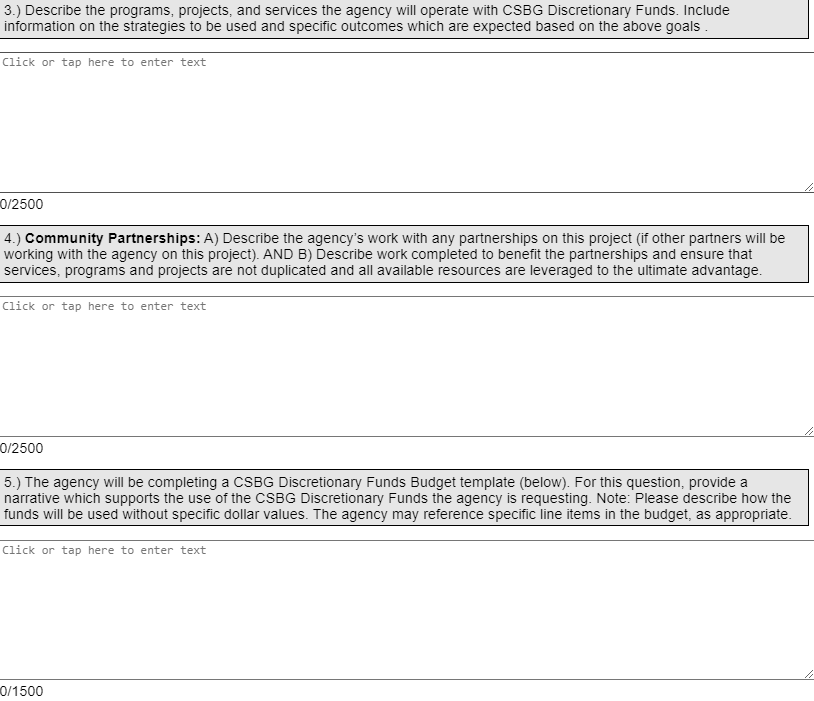
Sections 3-5: Information must be entered into each section. An error message will display when the Save button is selected and a section does not have information.
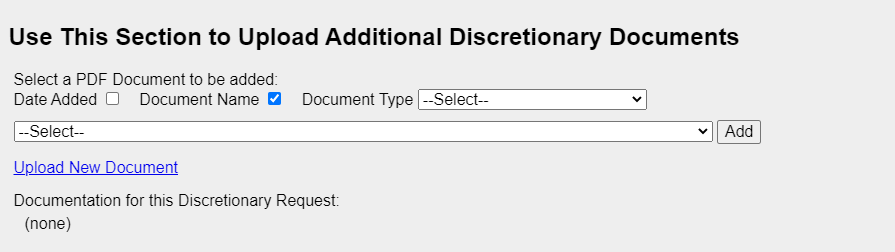
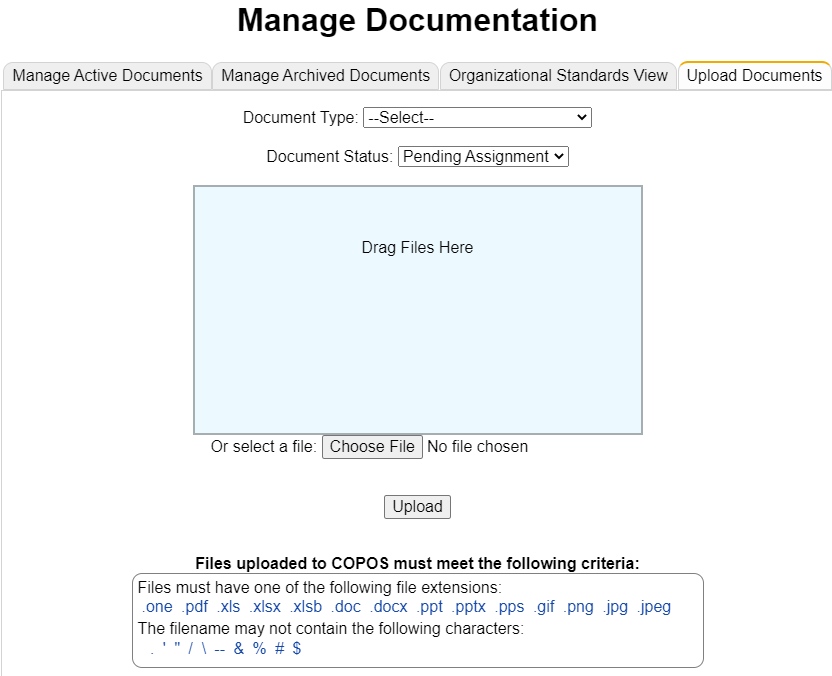
The agency may upload one or more documents to support the Discretionary Request. Selecting the Upload New Document link displays the agency’s Manage Documentation Upload Documents screen. Uploaded documents display in the box. If information on the upload documents process is needed, refer to the COPOS User Manual.
Budget: The second section of a Discretionary Request is the Budget information. For each applicable area enter the amount being requested. If needed, enter a description in a category box and then the associated amount.
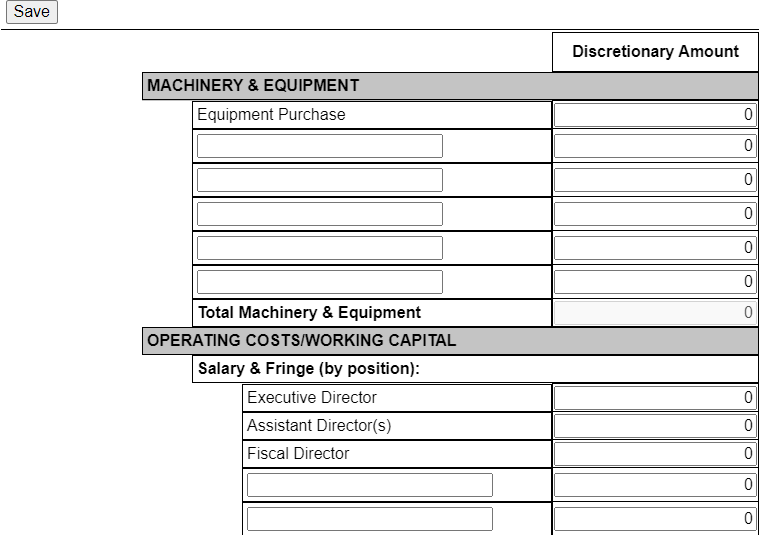

If the Total CSBG Program total does not = the entered Amount of the Request, the cell displays in red.
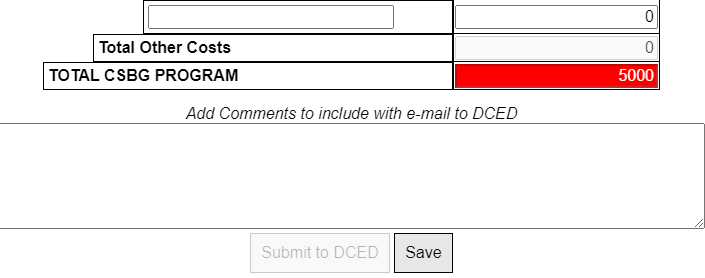
When the Total CSBG Program total does = the entered Amount of the Request, the cell does not display in red.

A Comment can be entered into the box to provide DCED any additional information about the Request. After the Save button is selected and no errors display, the Submit to DCED button is active.
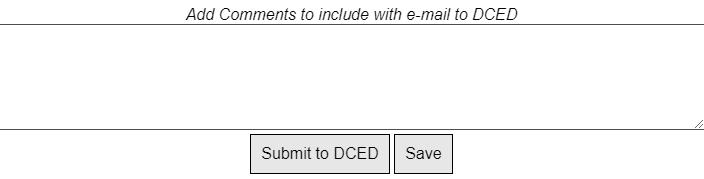
DCED receives an alert and e-mail notification and reviews the agency’s Discretionary Request information. DCED will Process Discretionary Funds or Deny Funding. As part of processing the funds, DCED enters the Process Amount. If DCED has questions/issues with information provided, a Comment is entered and the funding is denied and returned to the agency for updates.
Selecting the View link to displays the Discretionary Request for reading.
The Edit link displays before submitting to DCED or if returned by DCED.
Selecting the link allows changes to be made.
An agency is able to delete an unprocessed Request (Processed Amount = N/A)
by selecting the associated Delete link. The Request displays in the
Deleted Discretionary Requests table (select the View Deleted Requests link).
The Download PDF link creates an Adobe PDF version of the request
for saving and/or printing.
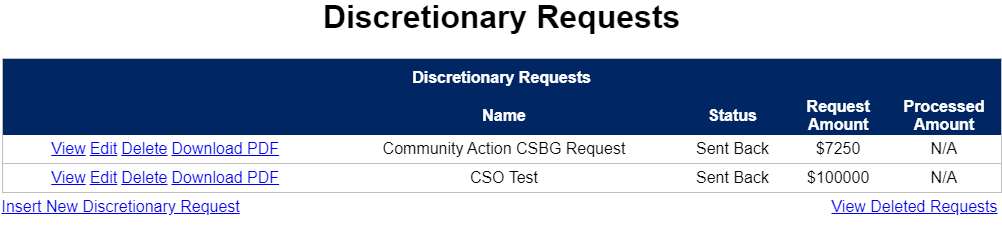
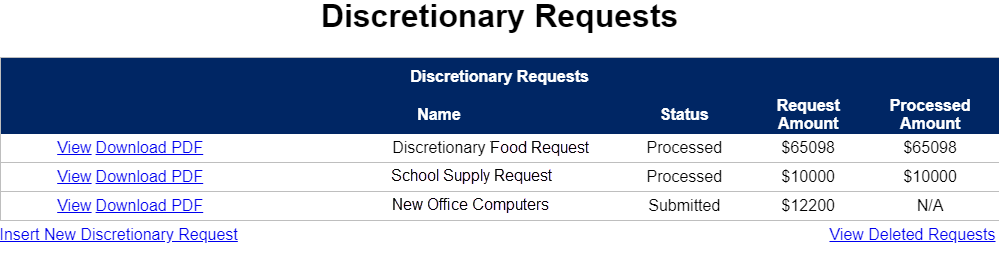
After submitting the Discretionary Request to DCED for review, the request will be returned along with a comment for the reason it cannot be processed or the request will be processed. An e-mail notification and an alert are sent to the agency ED, Local Admins, and Users with Work Plan access. If the request is processed, the request shows the Processed Amount entered by DCED.
Alerts: Deleting or re-submitting a request to DCED automatically marks the alert as Worked for everyone receiving the alert. Selecting to Hide an alert, only hides it for the user hiding it.